

Running a Shopify store means spending a lot of time on images. Shooting, retouching, uploading, organizing the catalog: that time is well spent when the files are properly prepared.
When they aren't, the consequences quietly pile up: slow pages, blurry visuals on some screens, product pages that don't show up in Google Images, zoom disabled on mobile.
Yet the image is the first selling point of a product page.
Before the price, before the description, before customer reviews, it's what visitors see first.
The problem is that these shortcuts have measurable consequences.

What Shopify handles for you
Shopify includes several optimization mechanisms that run in the background. The platform serves your images in the lightest format the browser supports (WebP for nearly all current traffic). Responsive resizing and lazy loading exist, but they require specific implementation in the theme code.
These automatic features are real. They also have clear limits.
Shopify works with what you give it.
If you upload a HEIC image taken on an iPhone, it will display poorly on most non-Apple browsers. If you upload a 15 MB file where 300 KB would have been enough, the platform only optimizes at the margins.
If your alt texts are empty or generated from the file name, they will stay that way.
Shopify's technical limit is 5,000 x 5,000 pixels and 20 MB per image. That's a safety ceiling, because the target values to aim for in practice are well below it.

Reference dimensions
Needs vary depending on where the image sits and what it does. A hero image has to cover a large screen; a thumbnail in a catalog grid faces very different constraints.
| Image type | Desktop (W x H) | Mobile (W x H) | Ratio | Target weight |
|---|---|---|---|---|
| Background image | 2,560 x 1,400 px | 360 x 640 px | 16:9 | ≤ 400 KB |
| Hero image | 1,600 x 900 px | 800 x 450 px | 16:9 | ≤ 300 KB |
| Banner | 1,200 x 400 px | 360 x 120 px | 3:1 | ≤ 80 KB |
| Blog image | 1,200 x 800 px | 360 x 240 px | 3:2 | ≤ 200 KB |
| Product (square) | 2,048 x 2,048 px | — | 1:1 | ≤ 150 KB |
| Thumbnail | 300 x 300 px | 90 x 90 px | 1:1 | — |
| Logo (horizontal) | 400 x 100 px | 160 x 40 px | 4:1 | ≤ 50 KB |
| Logo (square) | 100 x 100 px | 60 x 60 px | 1:1 | ≤ 50 KB |
| Favicon | 16 x 16 px | 16 x 16 px | 1:1 | — |
| Lightbox | 1,920 x 1,080 px | 360 x 640 px | 16:9 | — |
A few notes on the cases that deserve a comment:
For product images, the square format (1:1) has become the de facto standard in e-commerce. It works well on small screens and lets you show more products in a grid without extra scrolling. The target value of 2,048 x 2,048 px is the threshold at which Shopify's native zoom works properly. Below 800 x 800 px, zoom is disabled.
The hero image is usually the image that contributes most to a page's LCP, and it's also the first one visitors see. Aim for 800 px wide on mobile screens and go up to 1,600 px for large screens, with a well-compressed WebP export. In most cases that keeps you under 300 KB in practice, far below the 10 MB threshold shown in the table.
Google also provides all the dimension specifications for creating banners.
The documentation is available here.
Choosing the right format
Choosing an image format is one of the most impactful decisions for store performance, and often one of the least understood.
WebP
Today's default format for nearly all e-commerce images.
It produces files about 30% smaller than JPEG or PNG at equivalent visual quality. Shopify serves it automatically to compatible browsers, but uploading directly in WebP is still good practice: you keep control over the compression applied.
AVIF
This format beats WebP on compression.
Built on the AV1 video codec, it produces significantly smaller files at the same quality. Browser support is growing fast and now covers the vast majority of modern environments. If your store targets a tech-savvy audience or you optimize performance aggressively, it's a format worth testing seriously.
SVG
The only rational choice for logos and icons.
As a vector format, it relies on mathematical equations rather than a pixel grid, so it can be displayed at any size with no loss of quality, and usually with very light files. If your logo exists as a vector file (which should always be the case), export it as SVG.
PNG
Useful for visuals that need transparency.
Its lossless compression preserves the sharpness of graphics and logos on transparent backgrounds, whereas JPEG doesn't support transparency and WebP can sometimes produce unwanted artifacts on sharp edges.
Outside this use case, PNG produces heavier files than WebP with no notable advantage.
JPEG
The classic, solid format, but dated.
It's still acceptable for complex photographs, but its lossy compression and lower performance than WebP make it less relevant for e-commerce in 2026. Keep it only if converting to a modern format isn't possible.
Performance and Core Web Vitals
Core Web Vitals are the metrics Google uses to evaluate a page's experience quality. For a Shopify store, two of them are directly tied to images.
LCP (Largest Contentful Paint) measures how long it takes to render the largest visual element visible on screen at load. On a product page, that's almost always the main image. Google considers an LCP under 2.5 seconds satisfactory. Beyond that, the page is penalized in search results and the user experience noticeably degrades.
An image file that's too heavy is the top cause of a poor LCP on Shopify.
CLS (Cumulative Layout Shift) measures unexpected visual shifts during loading. When an image has no dimensions declared in the HTML code, the browser can't reserve space for it before it loads, which causes a layout jump when it renders.
Modern Shopify themes generally handle this correctly, but it's worth checking on custom themes or custom sections.
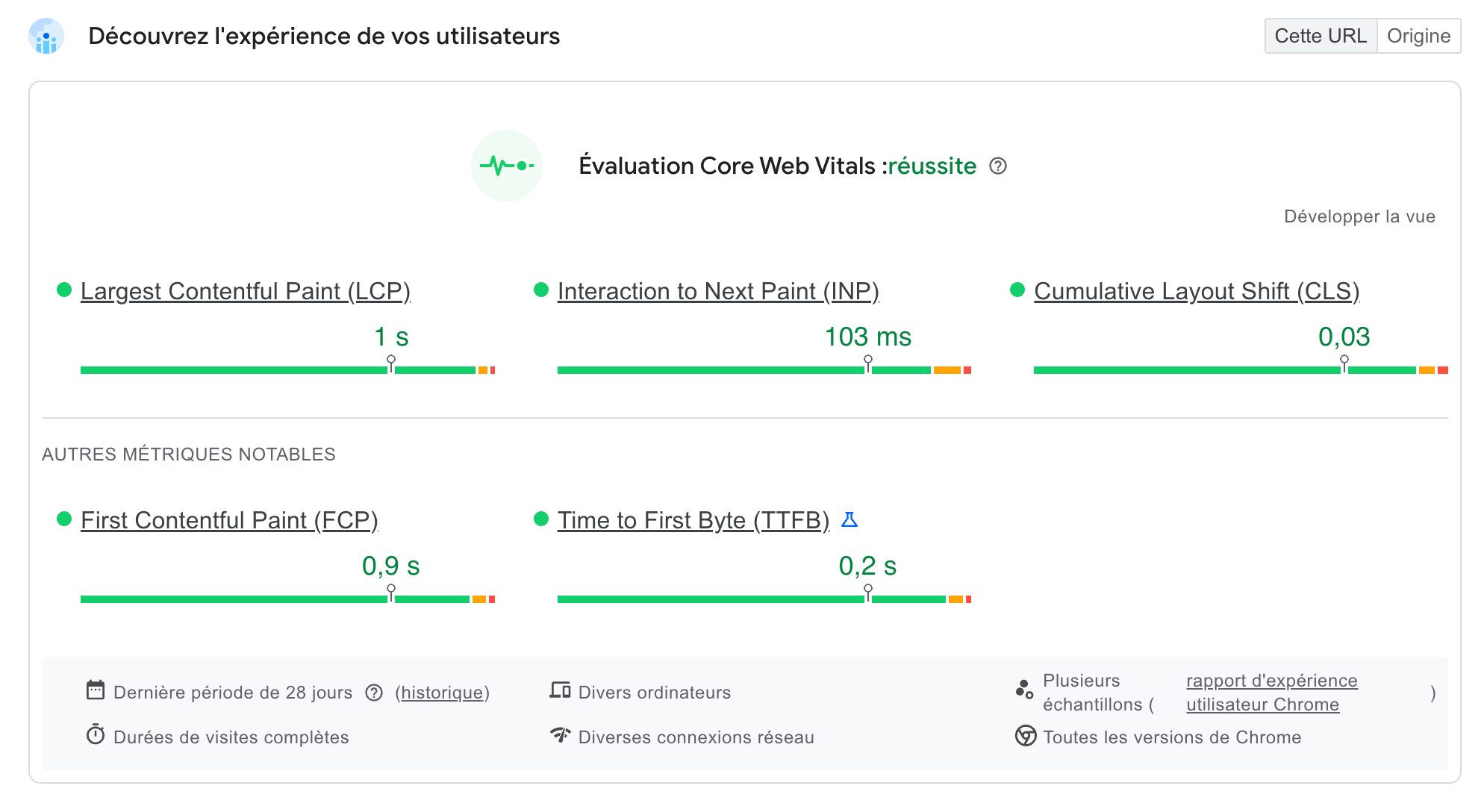
Loading performance matters even more with the rise of agentic commerce. AI agents that shop on behalf of users also evaluate a store's speed and data structure to decide whether a product deserves to be recommended.
To understand what this means in practice 👇
 Jérémie Werner
Alt text
Alt text is the HTML attribute that describes an image in words.
It plays two distinct roles, and it's worth keeping both in mind at once.
For accessibility, it lets visually impaired people using screen readers understand what an image shows. It's a legal requirement in many contexts and a basic practice for an inclusive site.
For SEO, it gives search engines text context about the image's content. Relevant alt text helps the page rank for related queries, and helps the image show up in Google Images.

Images uploaded in the Shopify admin have empty alt text by default.
Effective alt text describes the image precisely, works the main keyword in naturally without over-optimizing, and stays concise. Under 100 characters is a good rule of thumb.
For a product image, "Navy blue merino wool jacket, straight cut" does the job better than "jacket-product-1" or "high-quality merino wool jacket buy now".
Alt text is only one element among many in the equation of a product page that converts.
To go further on writing product pages, for humans and AI agents alike 👇
 Robin Marzin
Common pitfalls
Uploading files that are too heavy
This is the most widespread mistake, and the most costly for performance.
Shopify's 20 MB technical limit is a safety ceiling, certainly not a target.
In practice, a well-prepared product image should weigh under 300 KB, and a hero image under 1 MB in most cases. The gap between these targets and what you see on many stores is often considerable.
Ignoring ratio consistency
A subtler mistake, but one with a visible impact on how the brand is perceived.
Product pages with visuals in mixed formats: some portrait, some landscape, some square. This chaos creates an impression of disorder that erodes trust.
Setting a single ratio for all the images in a collection is a branding decision as much as a technical best practice.
Confusing resolution and dimensions
A mistake that's still too common among people who manage their own visuals.
Resolution (measured in PPI, pixels per inch) determines how sharp an image is at a fine level of detail; dimensions (in pixels) determine display size.
An image can be large in pixels and still look blurry if its resolution is insufficient, and vice versa.
For the web, 72 PPI is the standard; pixel size is what really drives the quality perceived on screen.
Images that look like you
Images are the most immediate point of contact between a visitor and a product. Content that comes before any reading, any decision, any trust granted.
Applying best practices is a discipline to build into how you manage your catalog every day: when you photograph, export, upload and name.
Every image is a decision, so make it a good one.